
Start. Run. Pause. Fully automating Fabric Capacity with Logic Apps
Trigger your orchestrator pipeline, refresh your models, and pause capacity only when all jobs finish

When you’re on the pay-as-you-go model in Microsoft Fabric, leaving your capacity running all day can be surprisingly expensive.
Initially many (especially new) users overlook an important piece of the pricing model - you pay for every minute your capacity is turned on, regardless of whether you’re fully using the available CUs or not touching them at all.
And if your workload only needs to run periodically — maybe once or a few times a day — you can save a lot by pausing your capacity whenever it’s not in use.
Most examples online show how to start or pause Fabric capacity on a schedule with Logic Apps - and that’s fine for simple cases. Here is a thorough walkthrough from Aleksi - which I’d recommend watching.
Issues with scheduled start & stop approach
It’s perfectly fine to use a fully scheduled setup. But imagine how many things you need to schedule - and how carefully you’d have to plan for possible lags, delays, or estimated refresh times.
Let’s say you have an orchestrator pipeline in Fabric that runs all the relevant items from your workspace.
When it’s ready, it can also trigger the refresh of the Power BI report built on top of your solution — so you don’t need to schedule that refresh separately.
Sure, you could set at least 3 schedules:
Start capacity at 05:00
Run pipeline at 05:05
Pause at 06:00
…but you’d be guessing.
Wouldn’t it be better if you could control the schedule instead of hoping your pause runs after your pipeline finishes?
And why keep paying for those ‘extra’ minutes you added as a safeguard - so long as you haven’t built up an over-usage debt?
Pausing your capacity when it’s idle directly avoids paying for minutes when nothing’s happening. It’s good to remember: if you’ve run heavy jobs that triggered bursting and smoothing, pausing will still trigger costs for any carry-forward overage.
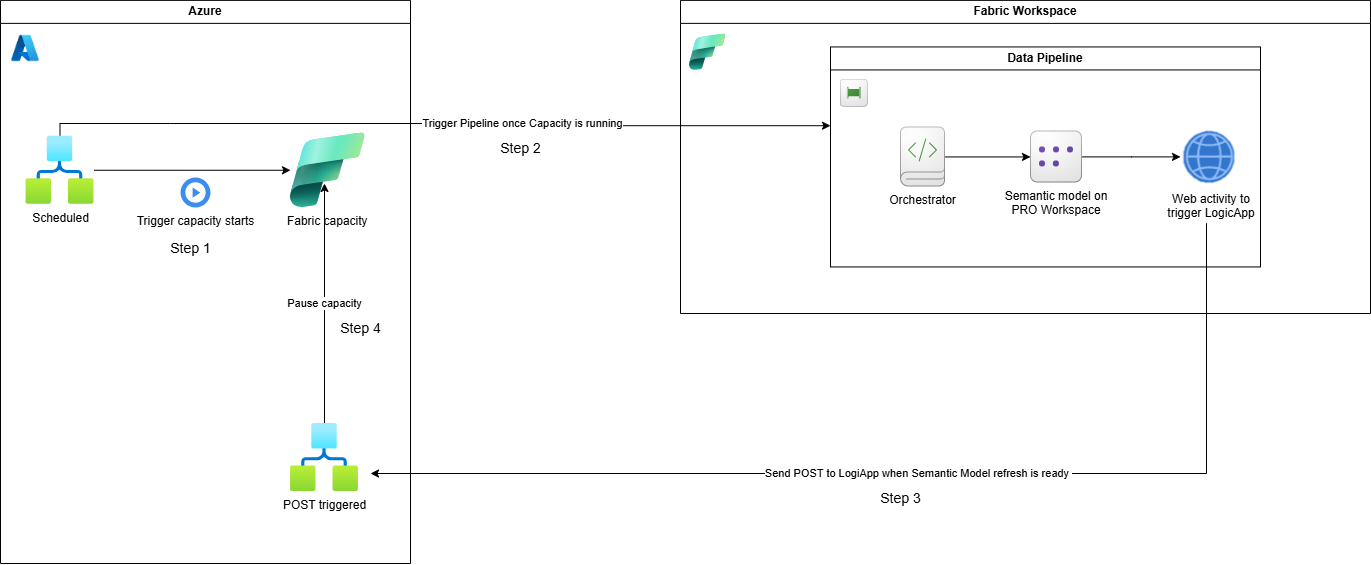
The solution I’ll show below solves exactly this issue. We will build a small automation where the Fabric capacity wakes up, runs your ETL and semantic model refreshes, and shuts itself down when it’s done.
The idea in short
I find this approach much cleaner: the capacity runs only as long as it’s needed, no more.
You don’t have to manually estimate refresh times, and you won’t risk pausing too early or too late.
In my case, the semantic model sits in a Power BI Pro workspace (using Import mode), while the data transformation happens in Fabric.
That’s why I’m using Fabric Data Pipelines here — they have a native activity to refresh semantic models in Power BI, which makes this setup much easier and cleaner.
You’ll have:
A Logic App to start your Fabric capacity on schedule (e.g. every morning at 5:00).
A Fabric Data Pipeline that orchestrates your work.: trigger your pipelines, notebooks, transformations, Power BI semantic model refreshes.
A Logic App that pauses the capacity — triggered directly from your pipeline when the job is complete.
This way, your Fabric capacity runs only when it needs to.
You don’t have to guess or overestimate run times — the automation pauses it only when the last job finishes.
Step 1 – Create the Logic App to start your capacity - scheduled
If you haven’t done this before, here’s a quick walkthrough.
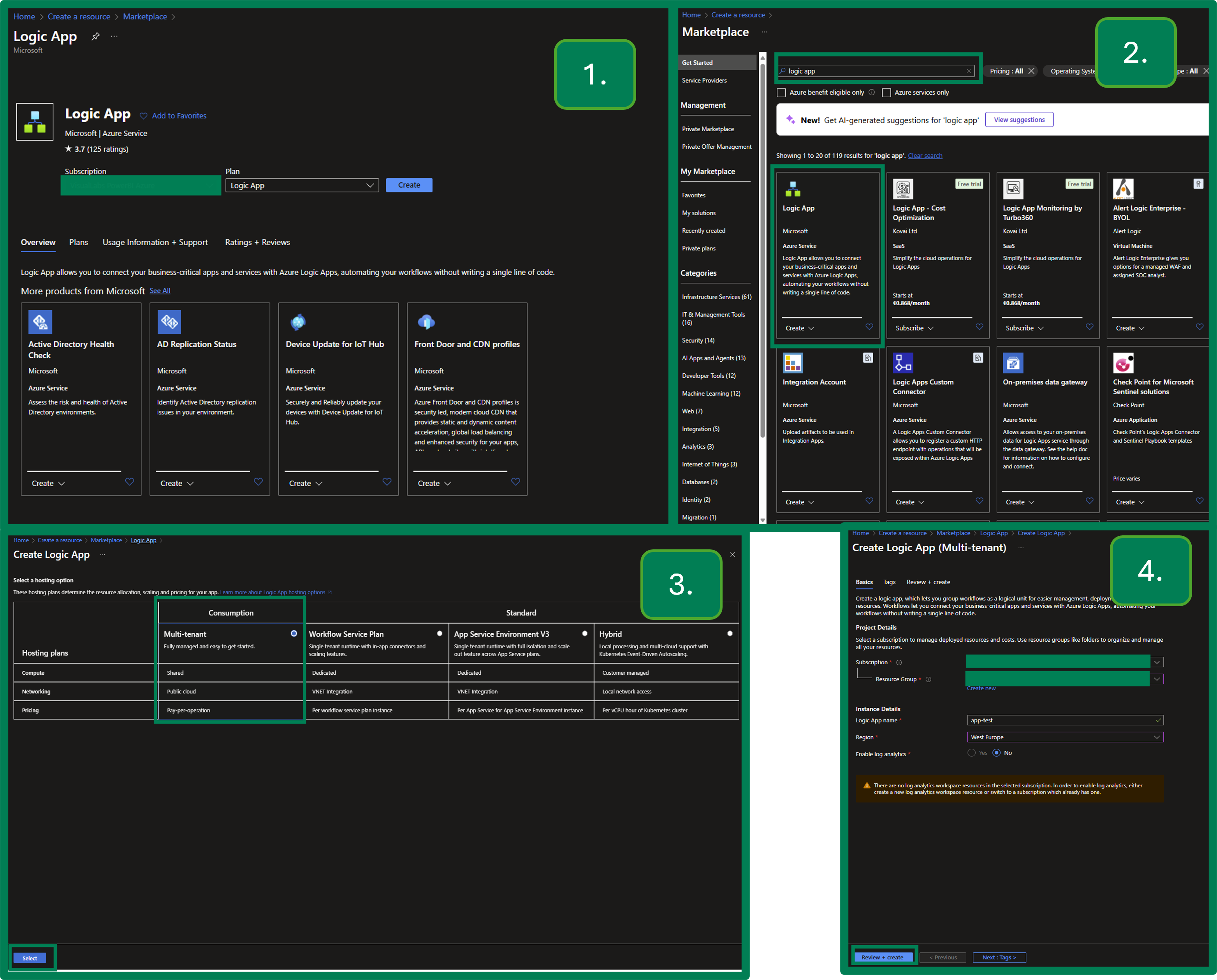
First, navigate to https://portal.azure.com/ and select Create a resource.
Search for Logic App, choose the Consumption-based option, and go through the setup steps as shown below.
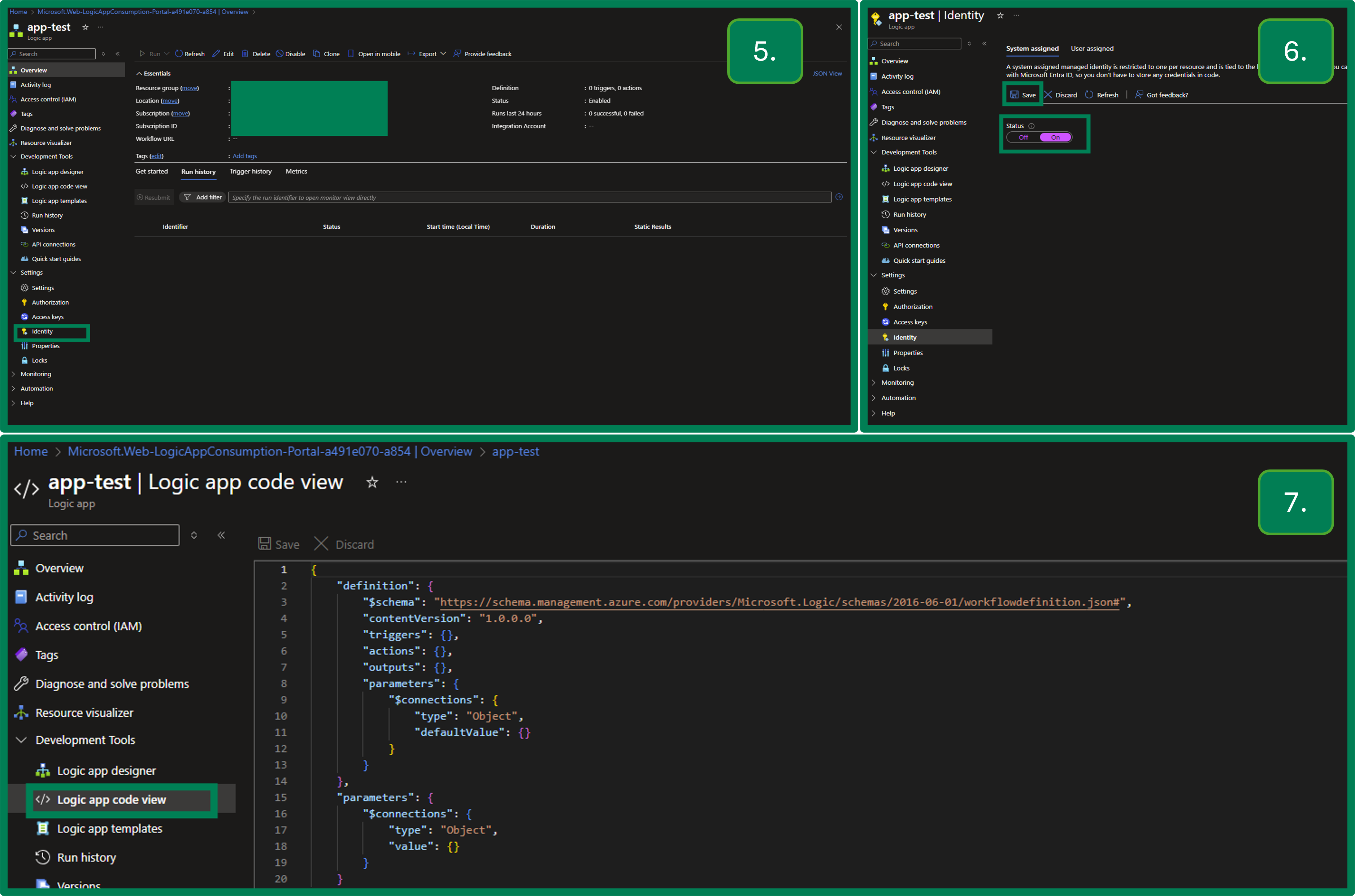
Once it’s created, turn on Managed Identity, then open the Logic App Designer (editor).
You can paste the code example from this GitHub gist as a starting point. This script is built on the script shared by Aleksi in the video I already shared above.
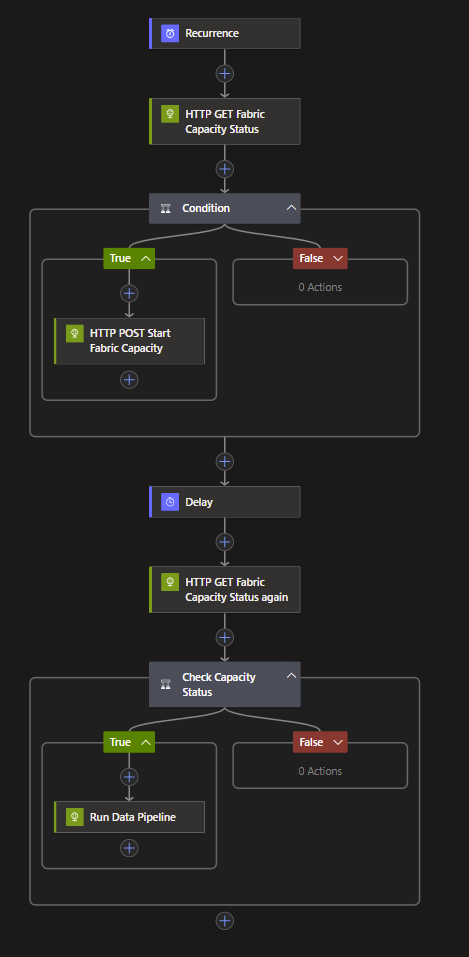
What the Logic App does
Starts at your scheduled time.
Sends an HTTP request to check the Fabric capacity status.
Starts the capacity if it’s paused.
Waits one minute to give the capacity time to start.
Checks the capacity status again.
If running, triggers the orchestrator pipeline in Fabric.
To set this up for your scenario, you’ll need your:
Subscription ID where the Fabric capacity is stored.
Resource Group name that contains the Fabric capacity.
Fabric Capacity name you want to start.
Fabric Workspace ID that stores your data pipeline.
Data Pipeline ID of your orchestrator pipeline to trigger afterward.
You can find the Pipeline ID as the GUID after
/pipelines/in the URL.
Replacing placeholders in the sample code
Once you have these details, replace the placeholders in lines 51, 91, and 126.
The API URI in lines 91 and 126 is identical (used to check the capacity status).
Line 51 uses a very similar URI with the additional
/resumecommand — this restarts the capacity.
https://management.azure.com/subscriptions/YourSubscriptionID/resourceGroups/YourResourceGroupName/providers/Microsoft.Fabric/capacities/YourFabricCapacityName/The Fabric-related GUIDs are used again in line 144, where you’ll add yourWorkspace ID and Pipeline ID.
You can get these by opening your data pipeline and copying the relevant parts from the URL, for example:
https://app.powerbi.com/groups/This-Is-Your-Workspace-ID/pipelines/This-Is-Your-Pipeline-ID?experience=power-bi
And finally, update the Pipeline run API endpoint in the code shared in the GitHub gist:
https://api.fabric.microsoft.com/v1/workspaces/YourWorkspaceID/items/YourPipelineID/jobs/instances?jobType=PipelineThe last action you need to do in this step is to give permission to this Logic App on your Fabric Workspace
Step 2 - Create another LogicApp to pause your capacity
Create another Logic App following the same steps as above. Don’t forget to turn on Managed Identity here as well. You can use the following code snippet to create it.
This Logic App will be triggered once it receives an HTTP request, and then it will:
Sends a response
Wait a few seconds
Check the Fabric capacity status
Pause it if it’s active
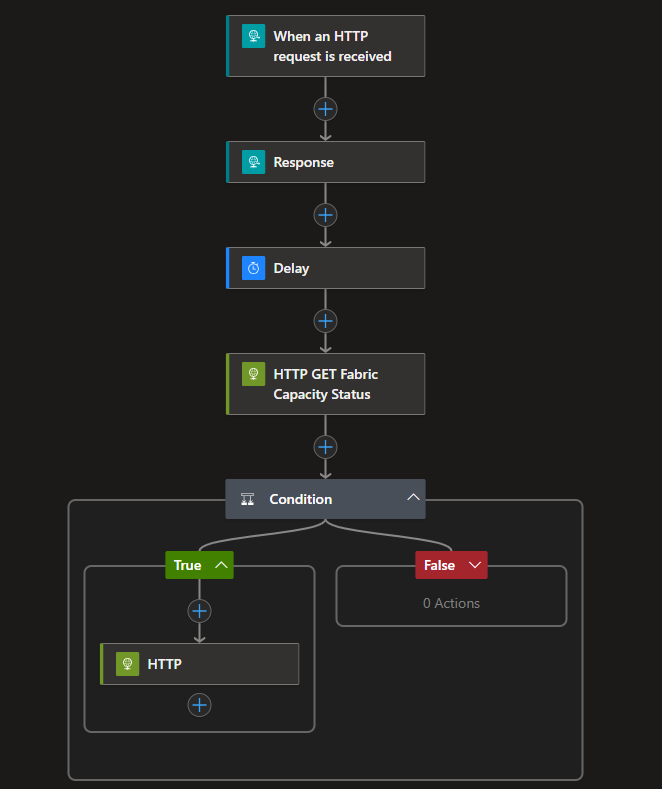
Update the code with your Subscription ID, Resource Group name, and Fabric Capacity name, just like before.
Modify the values in lines 28 and 70:
Line 70 checks the capacity status.
Line 28 pauses the capacity, as it includes the
/suspendattribute in the URI.
Once it’s created, open the Logic App and click on the When an HTTP request is received trigger.
Copy the URL provided — you’ll need it in Step 4 when connecting Fabric and the Logic App.
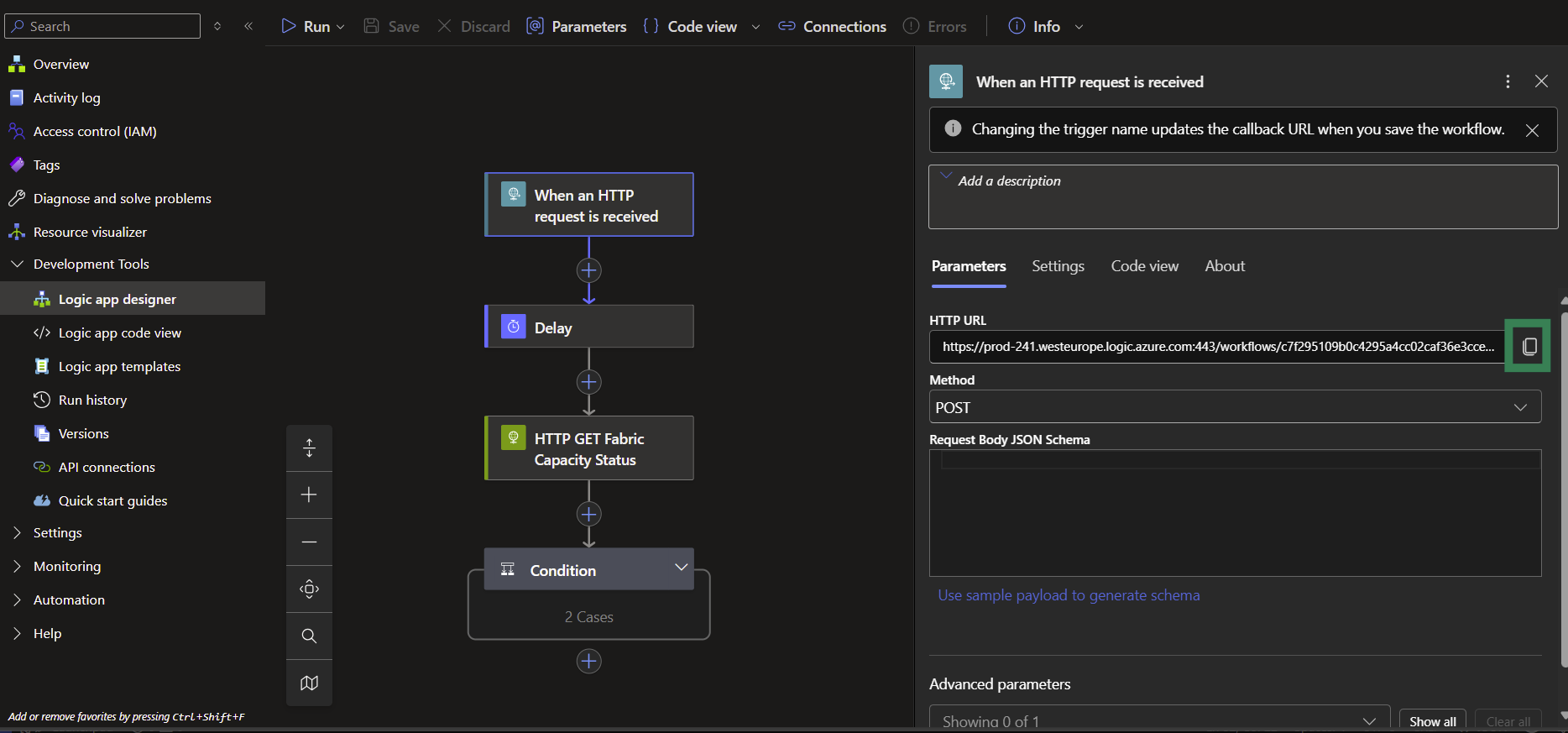
A little extra explanation to the flow’s logic:
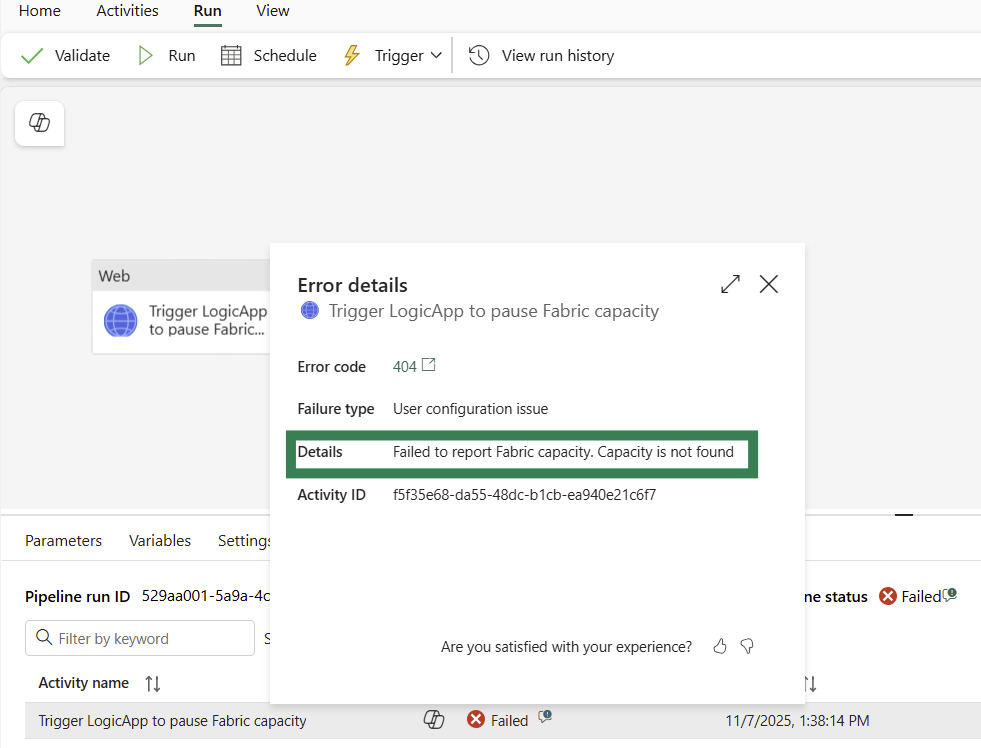
Without the response and delay actions, your Fabric pipeline will fail.
To be more precise, it will run successfully and pause the capacity, but in Fabric it will still appear as Failed.
If you check the run details, you’ll see the reason: the capacity is already paused.
I don’t fully understand the underlying reason — it likely has to do with how the Fabric API responds to the Logic App call — but if you want a successful pipeline run, you need to add a short delay (I use 10 seconds) before the Logic App pauses the capacity.
Step 3 - Give permissions to LogicApps
Both Logic Apps need permission to start and pause the Fabric capacity.
To do this, they require the Contributor role on the Fabric capacity resource.
In the Azure Portal, navigate to your Fabric capacity.
Open Access control (IAM) → Add role assignment.
Select the Contributor role.
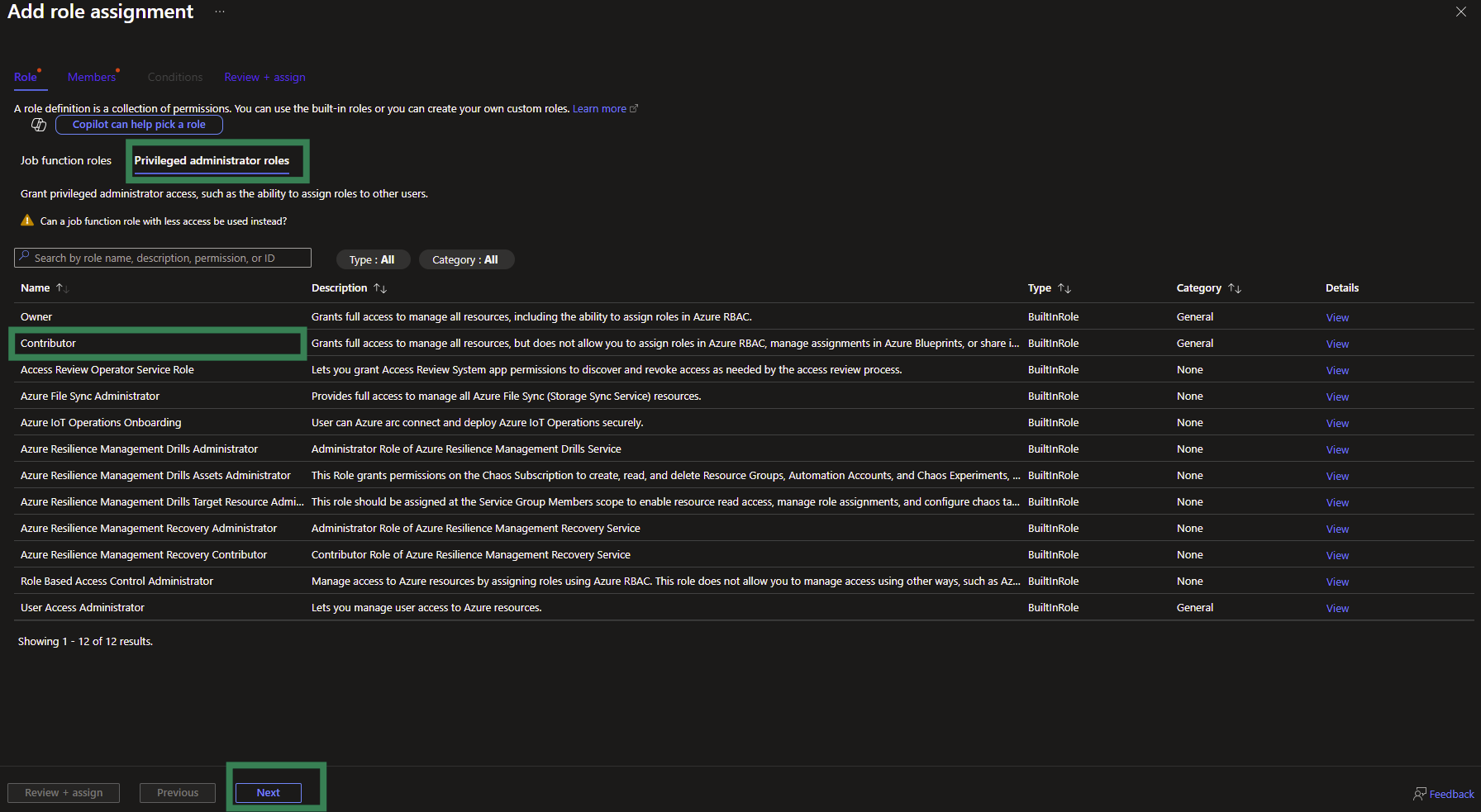
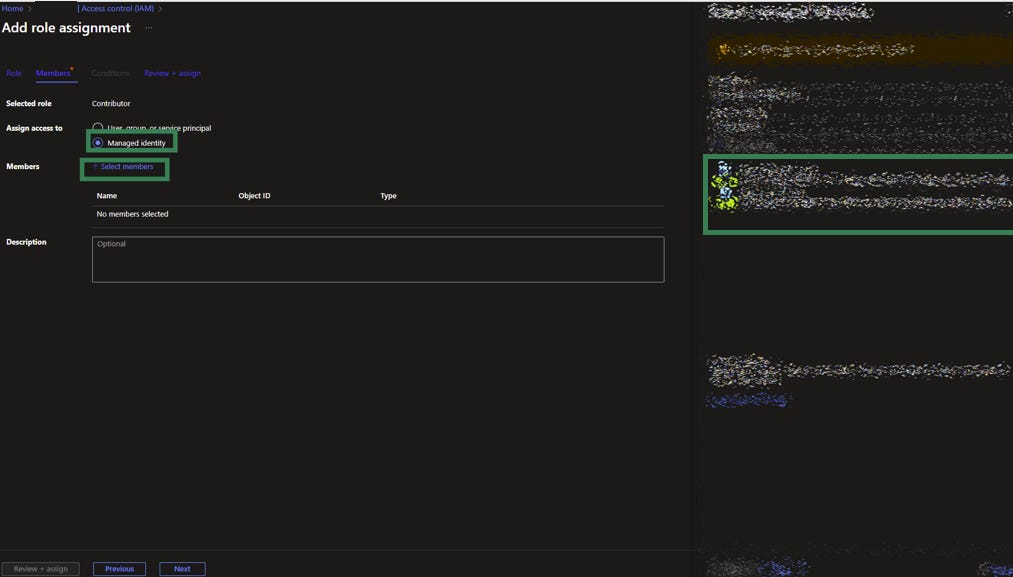
Click Review + assign as your last step.
Step 4 - Create your Fabric pipeline to orchestrate your datapipeline flow
Open your orchestrator pipeline and add this final step at the end.
Select the Web activity and go to the Settings tab.
Set the Method to POST and provide a Body (you can use the one from my example, the important thing is that it cannot be empty).

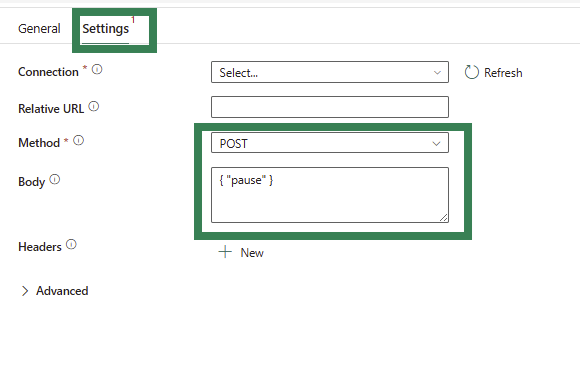
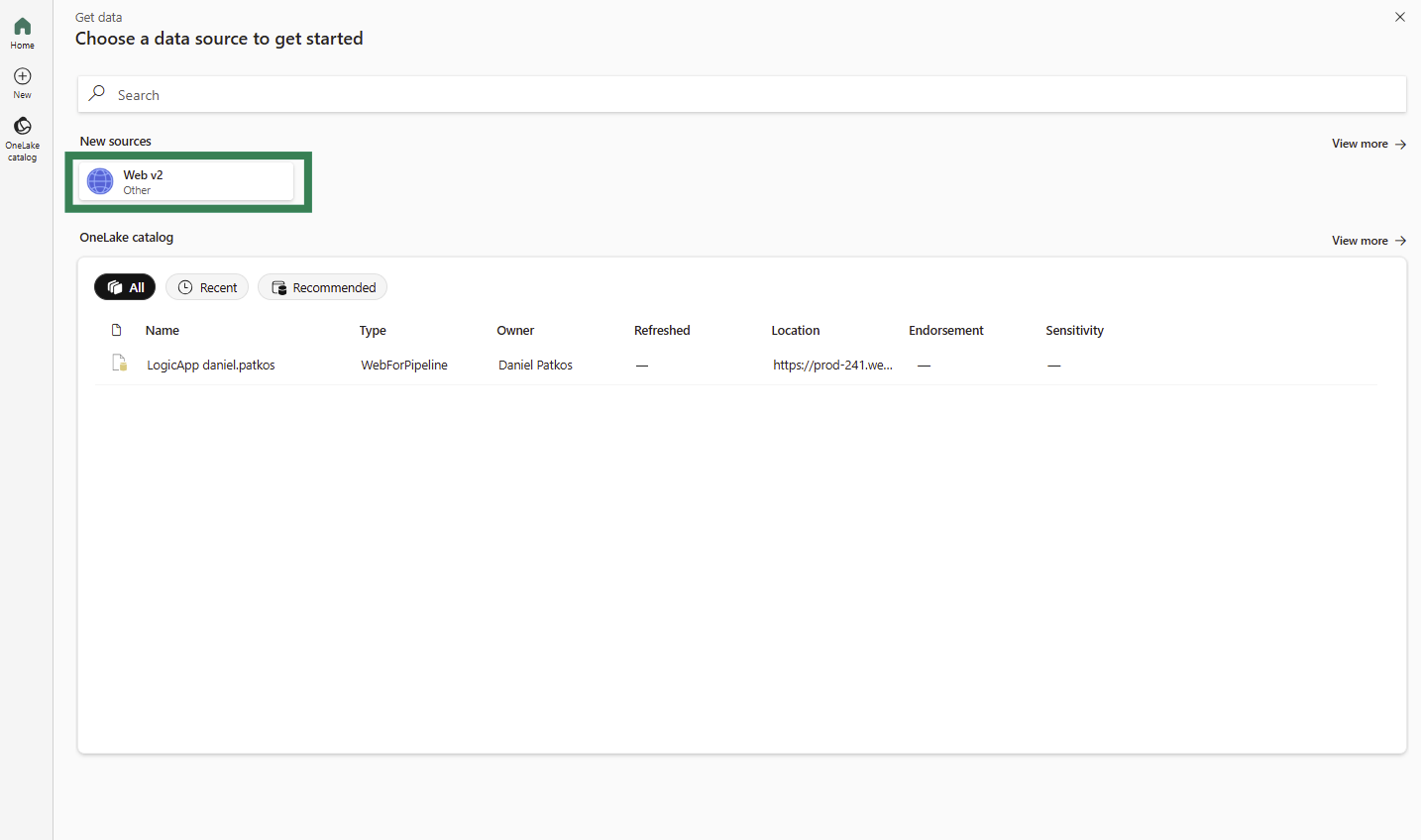
As the last step, you need to add a Connection to the Web activity. Click Add new from the dropdown and select Web-v2 under New sources.
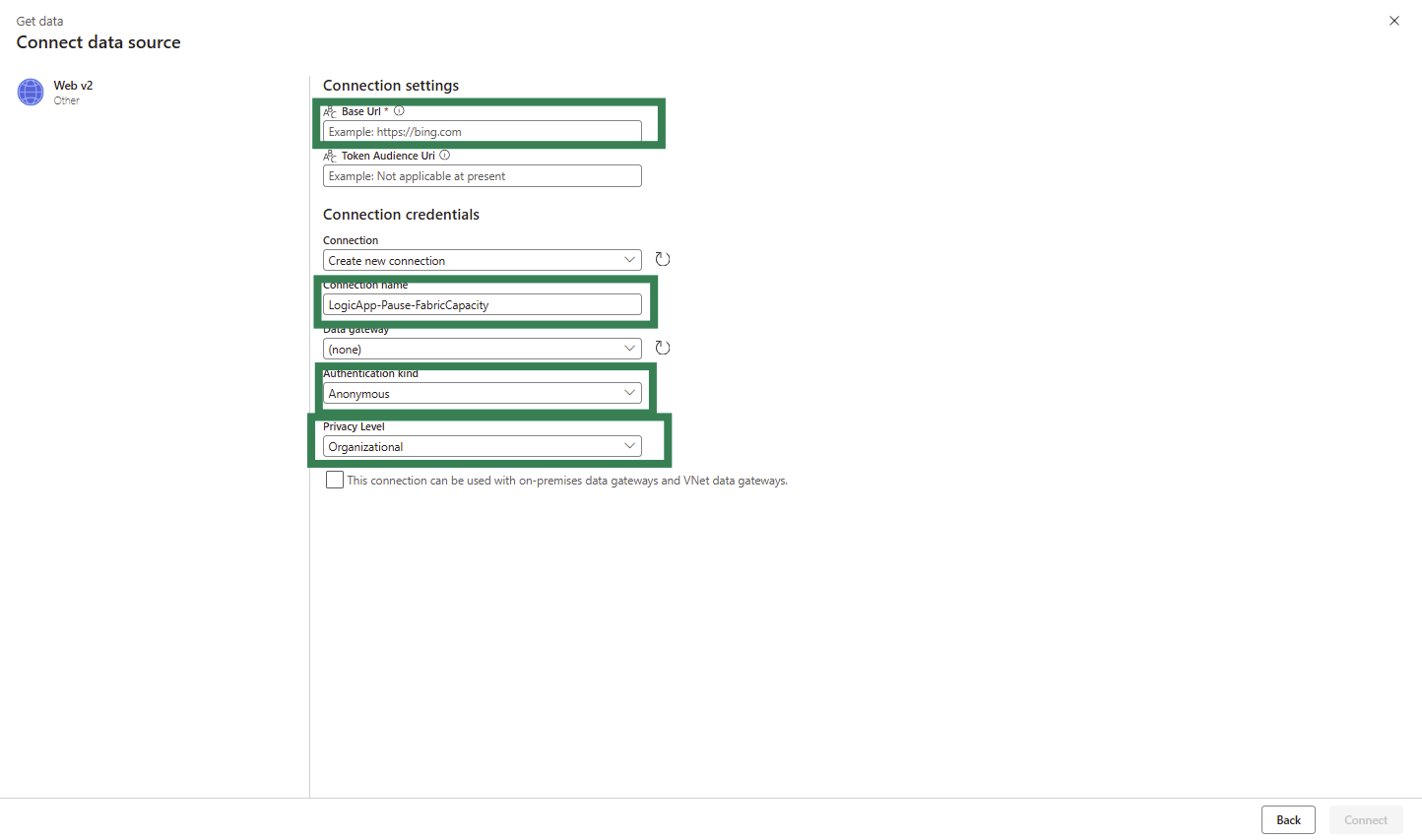
Use the following settings:
Base URL: the URL you copied from the second Logic App (end of Step 2).
Connection Name: any name you prefer.
Authentication kind: Anonymous – the Logic App provides a direct endpoint.
Privacy Level: Organization (or whatever level suits your environment).
Wrap-up
With two lightweight Logic Apps and a simple Web action at the end of your Fabric pipeline, you can fully automate your capacity lifecycle:
Start → Run → Pause.
It’s cost-efficient, easy to maintain, and doesn’t rely on complex credentials or external schedulers.
You pay only for the time Fabric is actually doing work.
Once you’ve set it up, you can extend it easily — add logging, alerts, or additional triggers if your workloads vary through the day.